

Lazy loading images below the fold is one of the easiest ways to improve the loading speed of your Framer site.
Luckily, thanks to Framer’s simulated DOM technologies, Framer automatically applies lazy loading to most of the images on your site.
However, there are some cases where this isn’t the case, for example:
Images inside carousels / slideshows
Images in a grid created via flexbox + wrap
Images inside custom code components
While you have full control over point three, you’ll need a custom code override to work around limitations one and two. And while this isn’t documented anywhere, it’s actually super simple.
Before I give you the override, let’s quickly go over what lazy loading is and when you should apply it, so you don’t accidentally tank your LCP times by using it incorrectly.
What is loading="lazy"?
loading="lazy" is an HTML attribute for images that instructs the browser when to load them.
The idea is simple: the browser doesn’t need to load every image on the page as soon as the user lands on it, especially since the user may never scroll far enough to see them.
By applying loading="lazy" to an image, you’re telling the browser not to fetch and paint it until the user gets close to it in the viewport. Because of that, the browser has more resources to focus on the assets above the fold and can show them quicker.
And that's pretty much the whole idea.
Images above the fold (the part of the page the user sees immediately) should load as fast as possible, while images further down the page can safely wait a little longer.
When should you apply lazy loading?
You should only apply loading="lazy" to images that are below the fold. In other words, images that are not immediately visible when the page loads.
Keep in mind that “above” and “below” the fold aren’t exact measurements. Loading the same site on a 14″ MacBook versus a 32″ monitor can result in very different above-the-fold areas.
Because of this, be careful when applying lazy loading to images that are very close to the hero section, as you may end up worsening the user experience instead of improving it.
Also worth noting: Framer is already quite smart about applying lazy loading automatically, so you’ll only need this override in very specific scenarios - namely the ones outlined at the beginning of this post.
Now that you’ve earned a bachelor’s degree in lazy loading, let’s see how to apply it in Framer.
Lazy load override for Framer
The override is very simple and uses the same property and logic Framer already relies on internally (the same approach used to add fetchpriority="high" to images).
Here’s what the override looks like:
Add this snippet to your Framer project as a code override, then apply it only to the images that should be lazy-loaded but aren’t handled automatically by Framer (for example, images inside carousels or wrapped flex layouts).
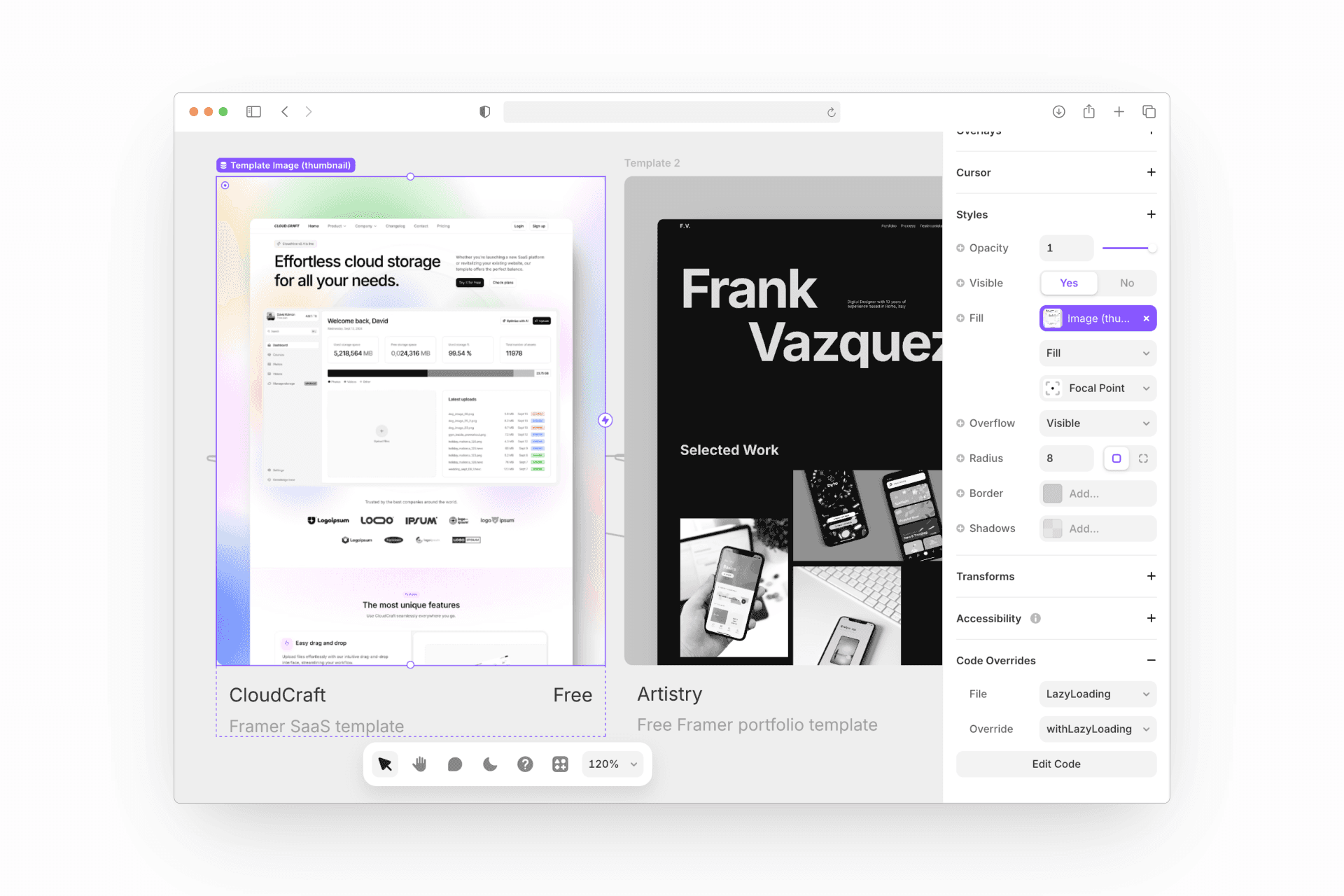
And that's pretty much all there is to it!
Hope you found this helpful
- Luca

Luca Da Corte is a certified Framer Expert and Product Specialist at Framer, with over two years of experience helping teams build world-class websites. He’s also the founder of clicks.supply, one of the leading hubs for Framer templates, components, and resources.
Check other
Framer articles
Explore other articles, tutorials, and guides that will help you master Framer and use it to create stunning websites.